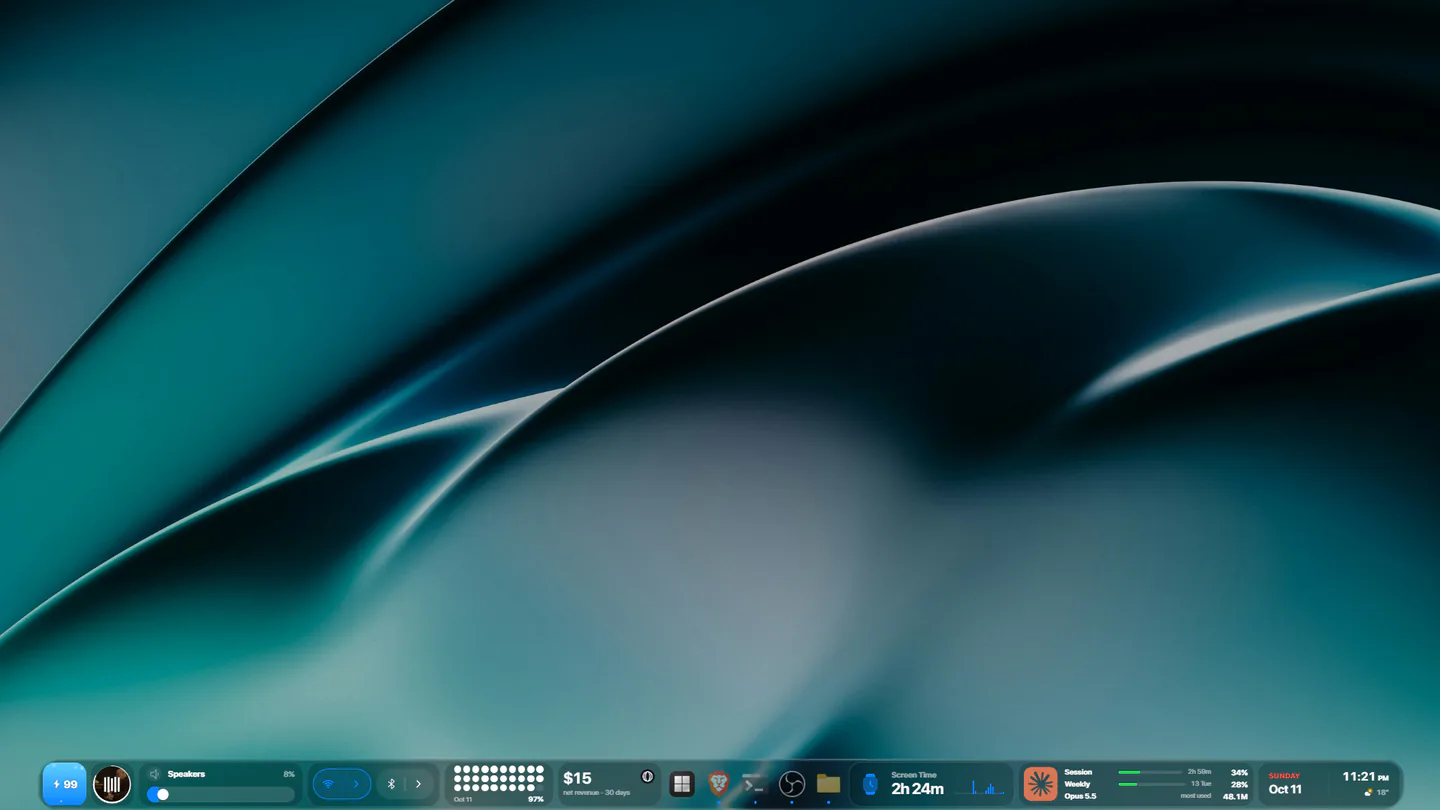
lumabar is a dock for Windows 11 and 10. It sits on the top or bottom edge of your screen, where the taskbar lives, and holds your apps the way a taskbar does - plus live widgets for the things you would otherwise open an app to check: the weather, your next meeting, the song that's playing, CPU and battery, your AI plan limits, today's revenue.
More than a taskbar replacement
A taskbar starts and switches apps, and lumabar does that too: the Apps widget shows the apps pinned to your taskbar and every open window. The difference is everything around them. Most of what we check in a day is a number or a line of text - a temperature, a time, a percentage - and each one usually costs a trip into another app. On lumabar it's already on screen, live, at the edge of your eye.
That's the idea behind it: make the desktop more useful and more your own, without adding one more thing to manage.
What you can put on it
85 widgets in twelve groups, and every license includes all of them:
- Clocks - digital, flip, seven-segment and analog faces, world clocks and the date.
- Productivity - Screen Time, pomodoro, timer, stopwatch, todos, notes and your calendar.
- System - CPU, RAM, network, CPU temperature, battery, brightness and quick toggles.
- Apps & Files - your apps, search, recent files, downloads, screenshots and the Recycle Bin.
- Media & Audio - what's playing, with full controls, and your audio output.
- AI - plan limits for Claude, ChatGPT, Gemini, Grok, DeepSeek, GLM and OpenCode.
- Money and numbers - Stripe, Polar and Dodo revenue, DataFast visitors and stocks.
- Online - Gmail, GitHub, X, TikTok, YouTube, LeetCode, the weather and wallpapers.
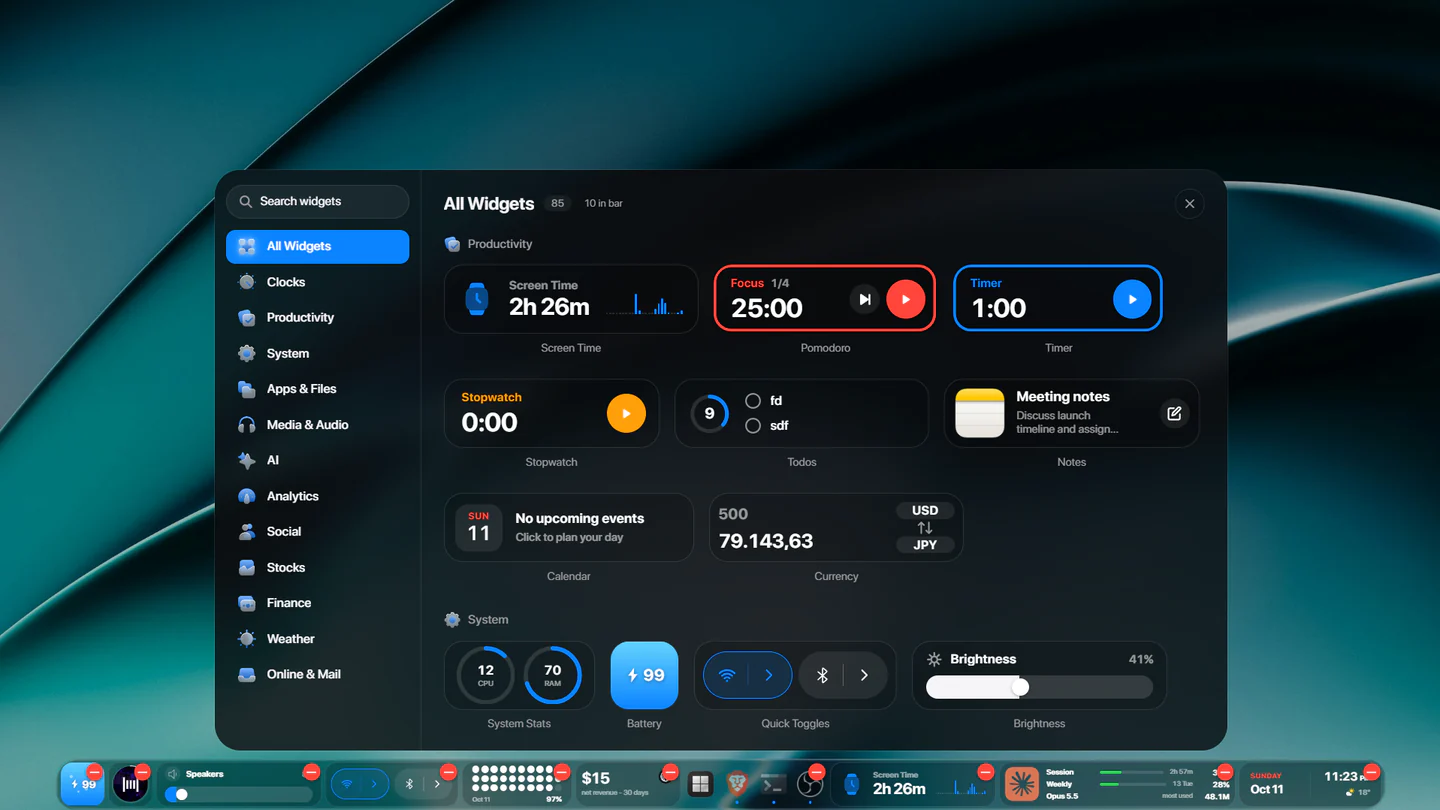
See every widget, with a picture of each.
Make it yours
- Five styles: Liquid Glass and iOS Glass let your wallpaper show through; Midnight, Black and White keep it quiet. More in Liquid glass on Windows.
- Three sizes - S, M and L - on the top or bottom edge: drag the dock up and it snaps to the top.
- An accent colour, from nine, for every switch, slider and ring.
- Widgets in the order you want: drag them along the dock.
- A 12- or 24-hour clock, and lumabar can start with Windows.





Simple on purpose
There are no skins to download, no config files and no layout editor. You add a widget from the picker and drag it where you want it. Widgets that read an account - Stripe, GitHub, Gmail, most AI tiles - use a read-only key you paste in or a sign-in already on your PC, and each tile's card says exactly what it needs.
lumabar leaves Windows alone, too. While it runs, the Windows taskbar is set to auto-hide or hidden - your choice - and when you quit, it's back the way it was. It needs no administrator rights, and it steps aside when a game or a video goes fullscreen.
Private by design
There's no lumabar account, no lumabar server and no telemetry. Your layout, todos, notes and Screen Time stay on your PC. The app goes online only for the license check and for the widgets you add - each one talking straight to its own service.
Who it's for
- Anyone who keeps an eye on the same few things all day: the time in another city, the weather, the next meeting, the song that's playing.
- Developers pacing their AI plans - Claude, ChatGPT, Gemini and the rest, side by side. See the AI usage tracker.
- Makers who sell online: revenue from Stripe, Polar or Dodo and visitors from DataFast, without a dashboard tab.
- Anyone curious where the day goes: Screen Time for Windows.
See it move
Getting started
- Buy lumabar - $5.99, once - and pick your Windows version (64-bit if you're not sure).
- Run the installer. lumabar docks to the bottom of the screen; paste your license key and press Activate.
- Right-click the dock → Widgets… and add what you want to see. Drag tiles to put them in order.
- In Settings → Appearance, pick a style and an accent. Drag the dock up if you want it at the top.