People hide the taskbar for a second monitor, for recording or streaming, for a kiosk display, or just to get it out of the way while they work. Windows 11's own fix for that is one checkbox - auto-hide - and it comes with a catch: move the pointer to the bottom of the screen and the taskbar is right back. For anyone who actually wants it gone, that's the whole native toolbox.
Turn on auto-hide, the only built-in option
- Open Settings → Personalization → Taskbar.
- Expand Taskbar behaviors.
- Check Automatically hide the taskbar.
The taskbar slides away until your pointer reaches the bottom edge, then slides back. On Windows 10 the same idea sits under Settings → Personalization → Taskbar → Automatically hide the taskbar in desktop mode.
Why that's not really "hidden"
Auto-hide only ever delays the taskbar; it never removes it. A pointer near the bottom edge, the Windows key, or an app flashing for attention brings it straight back. There is no Windows setting that keeps it hidden for good, and the usual workarounds don't add one:
- Making the taskbar transparent, with a tool such as Start11, changes how it looks - it is still there, in the same place.
- The registry and PowerShell commands you'll find (the StuckRects3 setting) switch on the same auto-hide as the checkbox, so they come with the same catch.
A hidden taskbar that still does its job: lumabar
lumabar is a dock for the top or bottom edge of your Windows 11 or 10 screen. While it runs, it can set the native Windows taskbar to auto-hide - what it always did - or to Hidden: never shown at all, pointer at the edge or not. Either way, Windows gets the taskbar back exactly as it was the moment you quit lumabar; nothing about Windows itself changes.

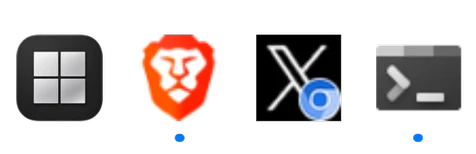
Apps
Start, your pinned apps and every open window.
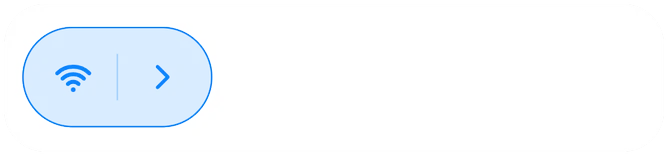
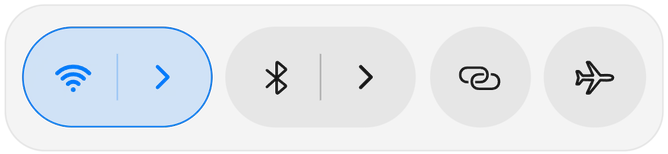
Quick Toggles
Wi-Fi, Bluetooth, mobile hotspot and airplane mode.

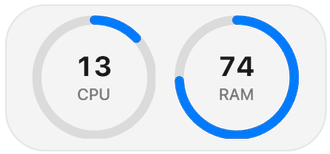
System Stats
CPU and RAM as two live rings.
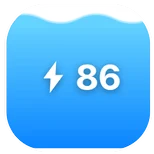
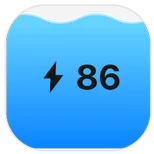
Battery
Charge level as a filling gauge, with the charging state.
The difference from simply hiding the taskbar is that nothing you lose comes back only on hover. The Apps widget keeps Start, your pinned apps and every open window one click away; Quick Toggles covers Wi-Fi, Bluetooth, hotspot and airplane mode; and CPU, RAM and battery sit on the dock as live rings - the things a taskbar's tray used to hold, just somewhere that doesn't reappear by accident. The next lumabar update brings the rest of the tray: a Tray tile with every app's tray icon - Windows Security, Steam, OneDrive and the like - each clicking just as it does in the Windows tray, and a Language tile that switches your keyboard language.
Auto-hide or Hidden - which to pick
Auto-hide behaves like Windows' own setting: the native taskbar still exists and slides up when your pointer reaches the screen edge, with lumabar's dock on top of it. Hidden goes further - the Windows taskbar never appears, at the edge or anywhere else, so lumabar's dock is the only bar on screen. Pick Hidden for recording, streaming or a kiosk display where you don't want the native taskbar flashing into frame; auto-hide if you'd rather keep it one pointer-nudge away.
Quit lumabar and Windows takes it back
Nothing about this touches Windows itself. lumabar doesn't patch Explorer or edit the registry to hide the taskbar - it switches the native taskbar's own hide state while lumabar is running, and switches it back the moment lumabar closes or you quit it. There's no uninstall step and no setting left behind: the native taskbar is exactly where you left it.
Set it up
- Install lumabar and activate your license.
- Right-click the dock → Settings → Dock, and set Windows taskbar to Hidden (or leave it on Auto-hide).
- Right-click the dock → Widgets… and add the Apps, Quick Toggles and system tiles you want in its place.
Want the bar at the top of the screen instead of the bottom? See moving the taskbar to the top. Want it to feel closer to a Mac's menu bar than a taskbar? See a Mac-style menu bar for Windows. Or see every widget that can fill the space.