Your phone tells you how long you spent in each app. Windows mostly doesn't - not for your own account. A laptop's battery page shows a single "Screen on" total, the per-app numbers there are about battery use, and Microsoft Family Safety reports app time only for child accounts.
lumabar's Screen Time fills that gap on any Windows 11 or 10 PC, desktop or laptop, and keeps everything on the PC.
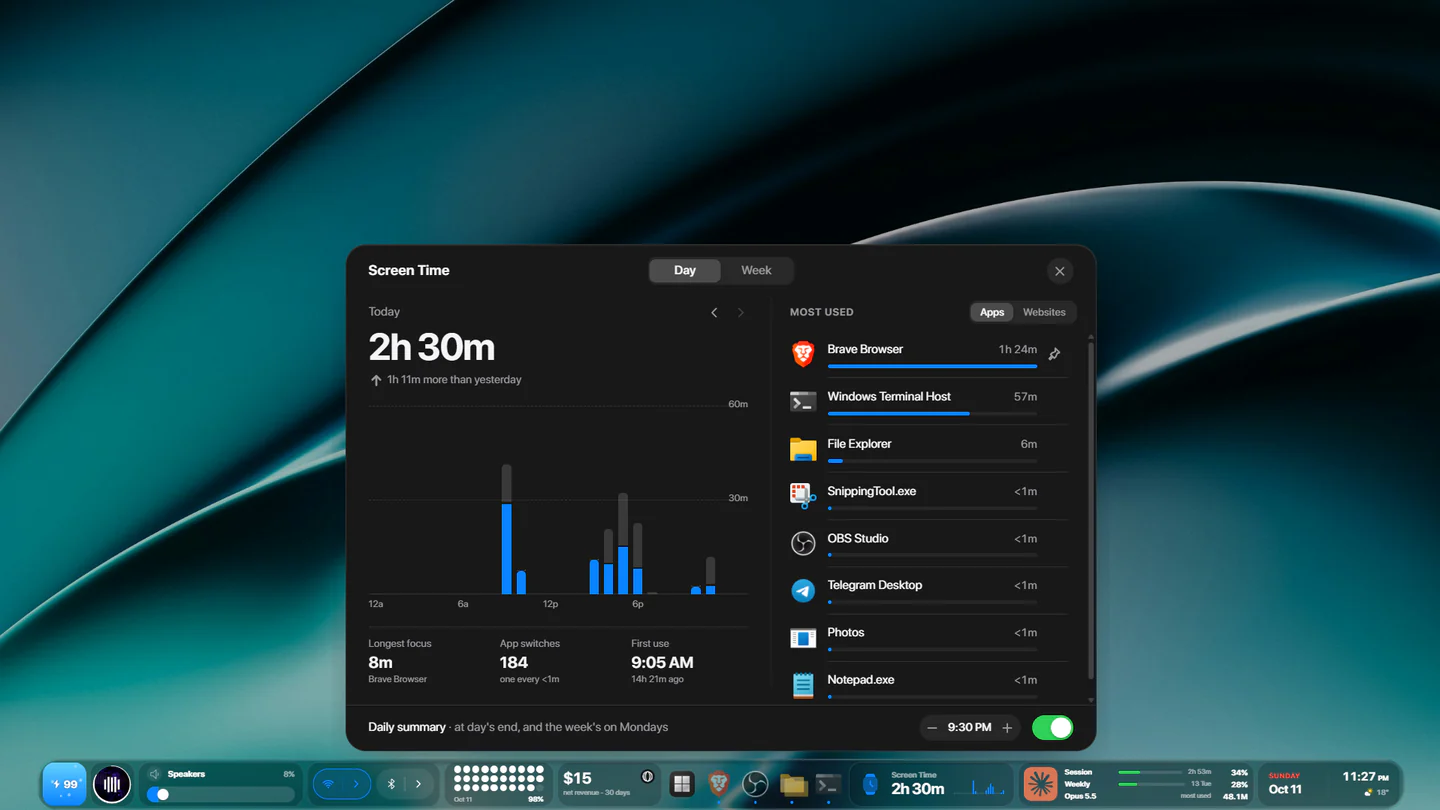
What it shows
- Today's total, and how it compares with yesterday.
- Hour by hour: when you were at the PC.
- Every app's time, most used first - and websites too, if you turn them on.
- Your longest focus (the longest stretch one app held the front), how many times you switched apps, and when the day began.
- The week, day by day.
On the dock, all day
The Screen Time tile shows today's total with the day's shape beside it - one thin bar per hour. Rather watch one app? Pin it in the card, and the tile shows that app's time instead.


Screen Time
Today's time in front of the PC, hour by hour - and every app's, by day and by week.

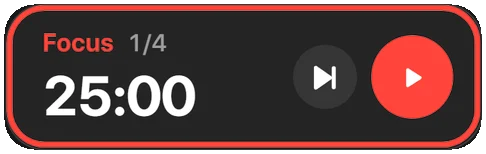
Pomodoro
Focus rounds and breaks you start and skip from the bar.
A summary at the end of the day
At a time you choose - 9 PM unless you change it - a short summary of the day appears above the dock, and on Mondays you get the week. Details opens the full card; switch the summaries off in the card if you'd rather not have them.
What counts, and what doesn't
- The app in front while you're at the PC counts.
- Step away and the count stops after five minutes without keyboard or mouse - unless something is playing fullscreen, like a film.
- A locked or sleeping PC counts for nothing, and neither do the desktop, Start, the taskbar or Alt+Tab.
- Websites are optional. When they're on, only a site's own short name is kept - YouTube, GitHub, Gmail - never page titles or addresses, and never a private window. Turning them off forgets every site.
It stays on your PC
Screen Time is counted and kept on your PC, for the last 90 days. Nothing is uploaded and there's no account to sign in to - like everything else in lumabar.
Set it up
- Right-click the dock → Widgets… → Productivity, and add Screen Time.
- It starts counting right away. Click the tile to open the card.
- In the card, switch between Day and Week, pin an app to the tile, turn websites on, and set the summary time.